Construction document management for subcontractors
The current drawings on every phone. The contract stays in the office.
Appello gives subcontractors construction document management on the job itself: folders for drawings, specs and submittals, set up the same way on every job and open on every crew phone. You choose which folders reach the field and which stay with the office. It's live today for insulation, mechanical, HVAC, plumbing, sheet metal, electrical, concrete and other ICI trade contractors.
9:41
26-014-01 · Files
- Drawings14
- Specs1
- Site safety2
- Submittals6
- Northgate project portallink
Opened
M-301 rev C · Chilled water
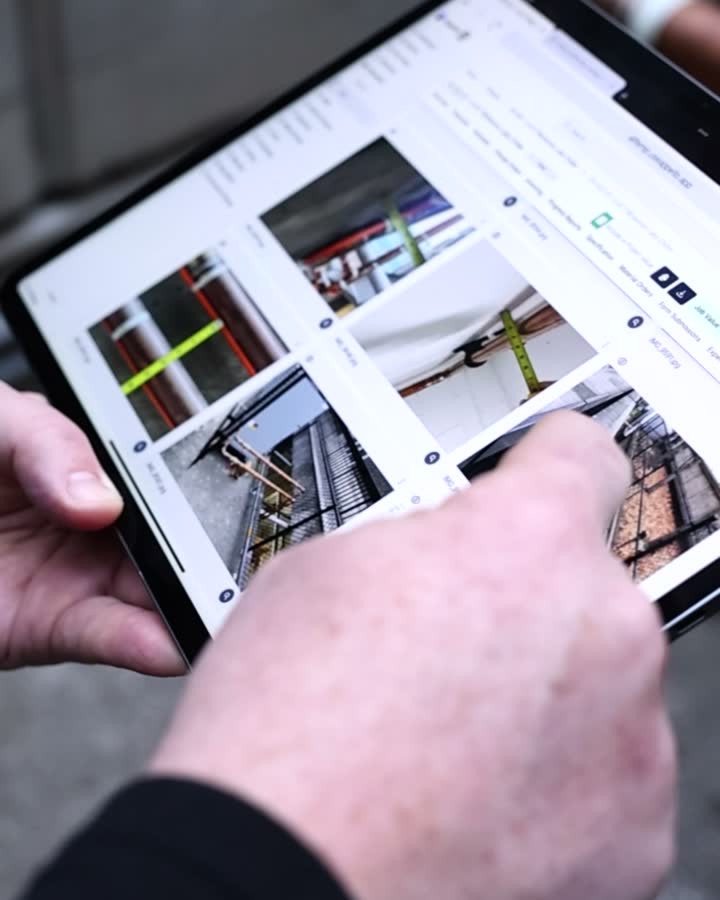
Footage from a real customer job. The phone screen is fictional sample company and data.
Rev B in the foreman's email. Rev C on the GC's portal. Which one got installed?
Most subcontractors don't lose documents. They lose track of which copy is current. Drawings arrive by email, get forwarded to the foreman, get printed in the trailer and get superseded a week later. The office knows about rev C; the crew is working off rev B.
In Appello the drawings live on the job, in the same folder for everyone. Put rev C in the Drawings folder and the crew opens it from there the next time they look. Contracts and pricing sit in a folder the mobile app never shows, so the phones carry what the field needs and nothing they shouldn't.
Try it
Tick a box, and a folder leaves the crew's phone
Every folder and external link on a job can be hidden from mobile. The office still sees it on the web; the mobile app leaves it out, with every file inside. Northline keeps the subcontract and bid documents back on Wing B. Change it and watch the phone.
Files · office, on the web
26-014-01 Lakeshore General · Wing B
- Drawings14 PDFs · M-301 rev C, M-401 rev B…
- SpecsSection 23 07 00 Mechanical insulation
- Site safetyNorthgate site orientation, FLHA sheets
- SubmittalsProduct data sheets, 6 files
- Contract & pricingSubcontract, estimate backup, 4 files
- Bid documentsTender addenda 1–3
- Northgate project portalExternal link · GC's document store
Appello · mobile app
Wing B · Files
- Drawings14 PDFs · M-301 rev C, M-401 rev B…
- SpecsSection 23 07 00 Mechanical insulation
- Site safetyNorthgate site orientation, FLHA sheets
- SubmittalsProduct data sheets, 6 files
- Northgate project portalOpens the GC's portal
2 kept in the office
Fictional sample company and data.
One week, one drawing set, nobody on the wrong revision
Document control for a subcontractor is less about storage and more about timing: the right sheet in front of the right person on the day they need it. Here is how Wing B's chilled water drawings moved through Northline in the week of September 7.
MonEstimating
The Fairview Clinic bid arrives. The estimator files the drawings and specs into the estimate's folders, so the takeoff and the quote letter work from the same set.
TueOffice
Wing B's job opens with Northline's default folders already in place: Drawings, Specs, Site safety, Submittals, and two hidden from mobile.
WedPM
Northgate issues rev C of the chilled water sheet. L. Ferreira uploads M-301 rev C to Drawings and moves rev B out of the crew's way.
ThuField
M. Tremblay opens M-301 rev C on his phone in the mechanical room, finds no saddles at riser R-3, and the question becomes RFI-007 against the sheet.
FriOffice
The PM adds a link to Northgate's project portal in Drawings, so the next revision is one tap away for everyone on the job.
Fictional sample company and data.
Same folders, two very different jobs
The office, on the web
The PM and coordinator build the folders, upload the issued sets, move superseded sheets out of the way and decide what the field can see. They work across every job from one place, and they can search a job's files by name when the GC asks which revision went out.
The crew, in the mobile app
The foreman opens the job, taps Drawings and has the sheet. No login to a GC portal, no forwarded email, no printing in the trailer. Photos they post with a job note go to the job's Note Files folder, so the office has the picture beside the drawing it belongs to.
Every job opens with the same folders
Set a default folder structure once in Appello's settings, for jobs, for projects, and for estimates and change orders. New records start with those folders already there, so “where are the drawings?” has the same answer on every job.
Appello adds its own folders for what it files for you. On a job, photos from job notes go to Note Files, and estimates, change orders and RFIs get folders of their own; a project gets Note Files and a folder for its jobs. Those can't be renamed or deleted, so nothing Appello filed goes missing. Drag files in to upload them, drag them between folders, and search a job's files by name.
26-014-01 Lakeshore General · Wing B/
├─ Note Files system
├─ Estimates system
├─ Change Orders system
├─ RFIs system
├─ Drawings default
├─ Specs default
├─ Site safety default
├─ Submittals default
├─ Contract & pricing hidden from mobile
└─ Bid documents hidden from mobile
Northline hides the last two from mobile. Fictional sample company and data.
A starting point for a subcontractor's job folders
Every company files a little differently, and the default structure is yours to set. If you're starting from a shared drive with a folder per job and nothing inside agreed, this split between field and office is a sensible first version to adjust.
| Folder | What goes in it | On crew phones |
|---|---|---|
| Drawings | Issued-for-construction sheets for your scope, plus a link to the GC's current set | Yes |
| Specs | Your trade's spec sections and the insulation or firestop schedule | Yes |
| Submittals | Approved product data, so the crew installs what was approved | Yes |
| Site safety | The GC's orientation package, site rules and emergency plan | Yes |
| Contract & pricing | The subcontract, estimate backup, insurance and bonding | No |
| Bid documents | Tender drawings, addenda and superseded sheets | No |
Appello's own folders for note photos, estimates, change orders and RFIs sit alongside these on every job.
Open a PDF and you're in the drawing viewer
Click a PDF in a job's files and it opens in Appello's drawing viewer: zoom, rotate, mark it up, and point an RFI at the exact spot. The next and previous arrows step through the other PDFs in the same folder, so reading a drawing set is one sheet after another, not back to the list each time.
Drawing markup in Appello →- M-301 rev C · Chilled water pipingOpen
- M-302 rev A · Heating water pipingNext →
- M-401 rev B · Ductwork, level 2
- Drawings folder, 26-014-01. Fictional sample company and data.
External document
Northgate project portal
- Folder
- Drawings
- Source
- GC's document store
- Added by
- L. Ferreira
- Hidden from mobile
- No
Fictional sample company and data.
External document links
When the GC owns the documents, link to them
Big general contractors run their own document stores, and the current set lives there. Copying it into another system means two copies and one of them wrong. Instead, add an external document link to the job: a name and a web address, filed in any folder beside your own files.
Appello records the link's source and who added it. Like a folder, a link can be hidden from mobile, so the crew sees the GC's drawing portal while the office keeps the link to the bid site to itself. Choose Upload link instead of Upload file and it's on the job.
“File the bid drawings” is a sentence, not an afternoon
Appello works natively with Claude, ChatGPT, Microsoft Copilot and Grok through the Appello connector (MCP). The assistant searches a job's files, creates folders, uploads files from a link and moves them between folders, all inside your Appello role, and every action is logged. It's the clerical half of document control, the part nobody misses doing by hand.
Agent playbook · Bid filing. When a bid invitation arrives, an agent saves the drawings and specs into the job's folders and tells the estimator what came in. Anything that goes back to the GC waits for a person.
You can delegate the work, but not the responsibility for it.
File these 12 bid drawings into the Fairview Clinic job's Drawings folder.
Finds the job's Drawings folder, creates it if the job doesn't have one yet, uploads the twelve PDFs from the links in the bid email and lists what it filed.
search_folders,create_folder,upload_file_from_urlFind the latest Wing B insulation spec.
Section 23 07 00, in the Specs folder on 26-014-01, with who uploaded it and when.
search_filesMove the addenda out of Drawings and into Bid documents on Lakeshore.
Three addenda moved. Bid documents is hidden from mobile, so they leave the crew's phones with the move.
search_files,move_file_to_folderSend me a link to M-301 rev C.
A link to open the drawing straight from the job's files.
get_file_url
What a contractor says about running jobs from one place
“I love having this dashboard of all our projects. It's like my little command center. I don't know how I would do it any other way to be honest.”
In the product today
- A Files area with folders on every job and project
- Company default folder structures for jobs, projects, and estimates and change orders
- System folders for note photos, estimates, change orders and RFIs
- Hidden from mobile on any folder or external link
- Drag-and-drop upload and moving between folders
- Search a job's files by name
- External document links with source and who added them
- PDFs open in the drawing viewer, with next and previous through the folder
- Files and folders through the Appello connector for AI assistants
Questions about project files in Appello
Where do a job's files live in Appello?
On the job. Each job and project has its own Files area with folders. Appello also keeps system folders for the things it files for you, such as note photos, estimates, change orders and RFIs on a job. You add your own folders around them, like Drawings, Specs or Submittals.
Can we set up the same folders on every new job?
Yes. A company-wide default folder structure is set once in Appello's settings for jobs, projects, and estimates and change orders. Every new record starts with the same folders, so a foreman on any job knows where the drawings are without asking.
Can we keep some files away from the crew?
Yes. Any folder or document link can be hidden from mobile. It stays visible to the office on the web and does not appear in the mobile app, along with the files inside it. Put contracts, pricing and bid documents in a hidden folder, and the current drawings go to the field without them.
Our GC keeps documents in their own system. Do we have to copy them?
No. Add an external document link instead. It is a named link to the GC's document store, a shared drive or a submittal portal, filed in the job's folders like any other item. Appello records the source domain and who added it, and you can hide it from mobile too.
What happens when someone opens a PDF drawing?
It opens in Appello's drawing viewer, where people can zoom, rotate, mark it up and link an area to an RFI. The arrows step to the next PDF in the same folder, so flipping through a drawing set does not mean going back to the list each time.
Does this replace the general contractor's document control?
No. The GC's system is the record for the whole project; Appello is your company's own record across all of your jobs. Link to the GC's portal with an external document link, and keep in Appello what your crews and office need: the issued sheets for your scope, specs, submittals and your own paperwork.
Where do photos from the field go?
Photos posted with a job note from the mobile app are filed in the job's Note Files folder, which Appello creates on every job. The office sees them on the note and in the job's files, beside the drawings and specs, without anyone saving pictures from a phone to a shared drive.
Can we find a file without knowing which folder it's in?
Yes. Search a job's or project's files by name from the Files area, and Appello shows matching files and folders across the whole tree. Through the Appello connector, an assistant can search files the same way, which helps when someone asks for the latest version of a spec and nobody remembers where it was filed.
Set up one job's folders with us
Bring a job's drawings and specs. We'll build your default folders, hide what the field shouldn't see, and open it on a phone.
Walk through a job in a demoA working session on your own week: your crews, your payroll rules, your jobs. Pricing for your team size afterwards.
- I have one problem to fix firstSee every modulePick the problem in front of you (payroll, scheduling, job cost, billing) and see the screens that handle it.
- I want to know where we standTake the 6-minute readiness scorecardScores payroll, job cost, scheduling, safety and how connected your systems are, which is the groundwork AI needs. You see your score in each area and a demo agenda built from your answers.
- I want the big pictureSee how Appello connects AIHow your operations data, your integrations and assistants like Claude and ChatGPT fit together.